DeckCompanion
For Steam Deck · SteamOS

Every game, set up right, before you press play.

DeckCompanion picks the right Proton for each game, applies community and per-game fixes, installs mods and shows you exactly what runs, all from a controller-friendly app in your Steam library.

  1. Switch to Desktop Mode and open this page.
  2. Download the installer, open your Downloads folder and double-click it.
  3. Return to Gaming Mode: DeckCompanion is in your library.
Prefer the terminal? ›
$ curl -fsSL https://deckcompanion.renner.dev/install.sh | sh

No root, no system changes. Everything lives in your home folder and survives SteamOS updates.

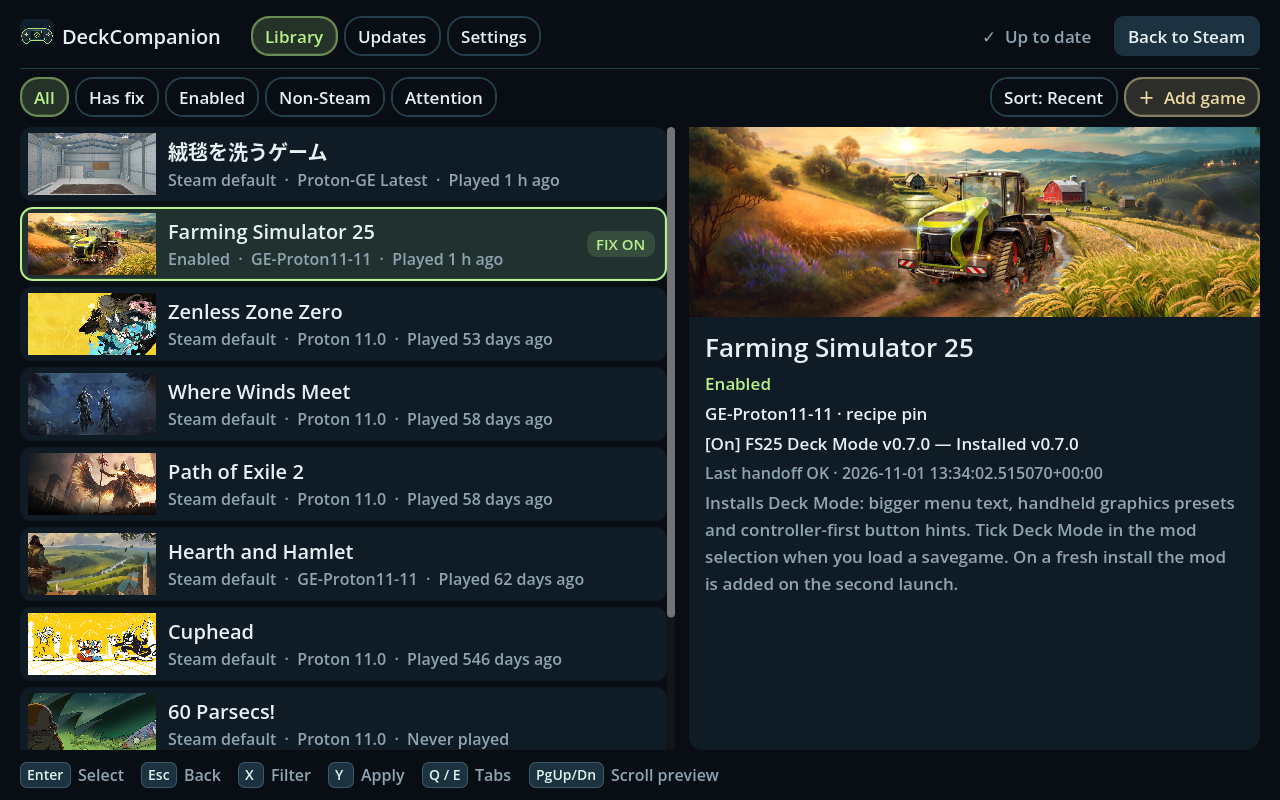
DeckCompanion library on a Steam Deck with a live game preview

Less tinkering. More playing.

The fixes the community already knows, the Proton Valve recommends, and the mods that make games handheld-friendly, applied automatically and always reversible.

⚙

The right Proton, per game

Recipe pins first, then your choice, then community fixes in GE-Proton, then Valve's own recommendation. You can always override it.

✓

Community fixes built in

Runs the umu-protonfixes community fixes for known games and adds DeckCompanion's own recipe steps on top.

✦

Mods, installed for you

Recipes can install verified mods into the game, like a handheld mode for big strategy and simulation games, and keep them up to date.

▶

A launch screen that explains

Every launch shows the Proton build, the fixes and the mods in use. Skip with A, hold with Y to read.

+

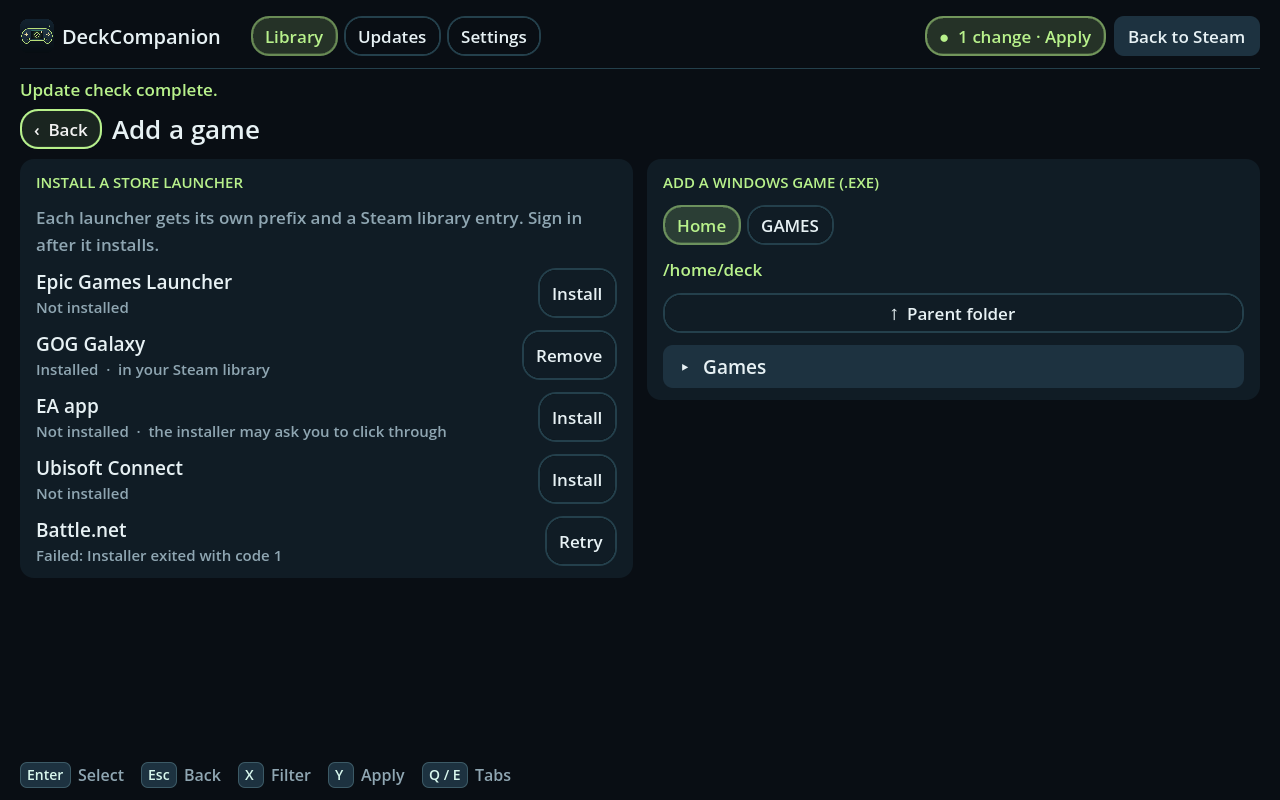
Store launchers in one click

Epic, GOG, EA, Ubisoft and Battle.net install into their own prefix and land in your Steam library.

↺

Undo everything

DeckCompanion keeps a snapshot of your Steam compatibility settings. One button puts every game back the way it was.

Your library, with context

Sorted by what you played last, with artwork, filters and a live preview: which Proton runs, which fixes apply, which mods are installed.

  • Filters for fixes, enabled games, non-Steam games and games that need attention
  • Made for the 7-inch screen and a controller; touch works too
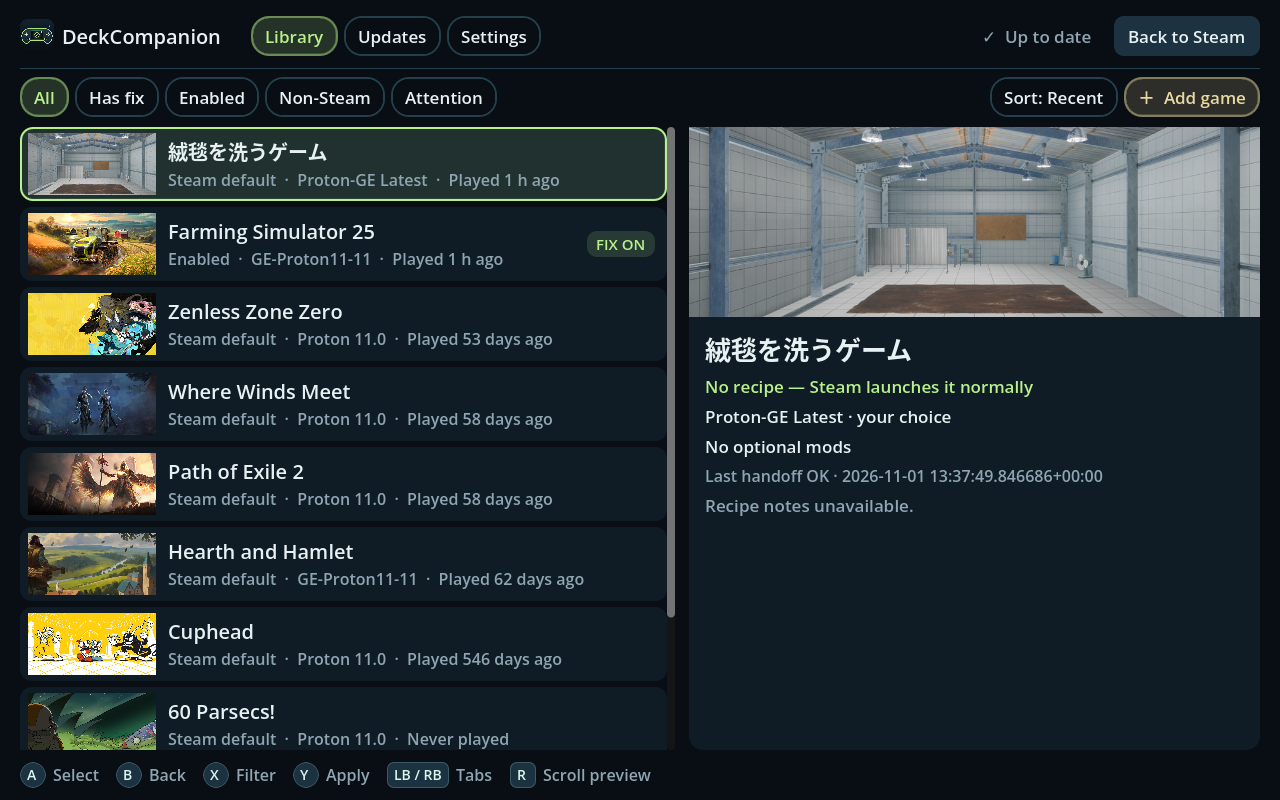
Library view

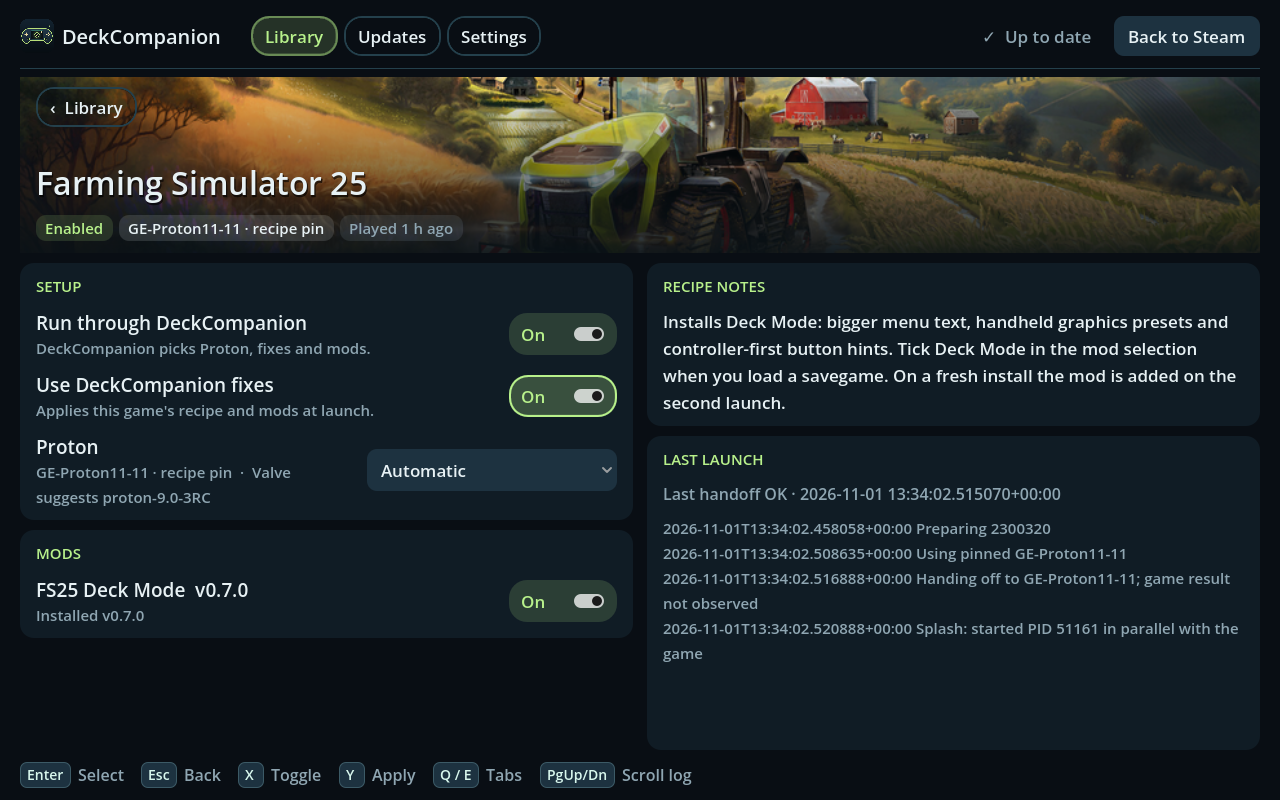
Per-game control

Turn DeckCompanion on or off per game, choose a Proton build, toggle mods and read the last launch log, all on one screen.

  • Recipes describe Proton, Wine fixes, mods and settings in one file
  • Mods are verified by checksum and removed cleanly
Game detail view

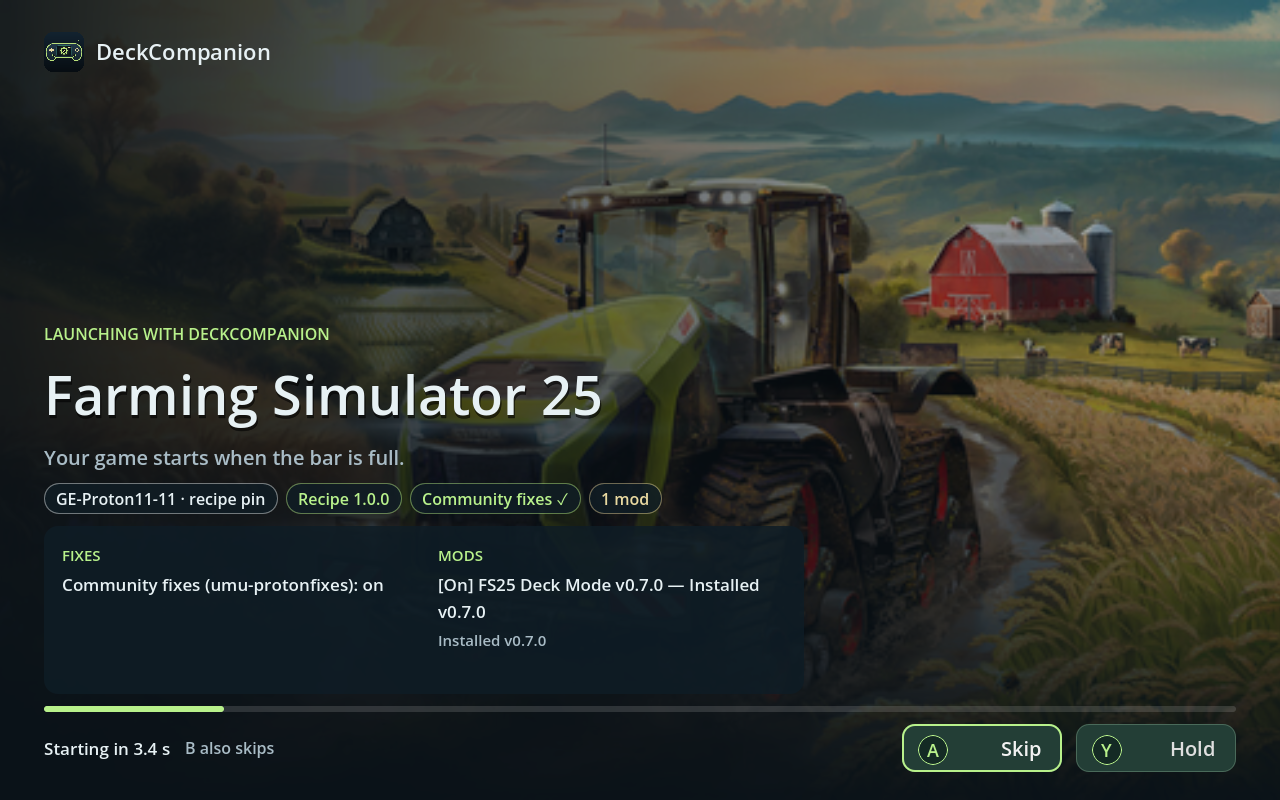
Know what you're launching

A short launch screen shows the game's artwork with the Proton build, community fixes and mods. Then your game starts.

  • Adjustable from 1 to 10 seconds, or off
  • Never blocks a launch: if anything fails, the game still starts
Launch splash

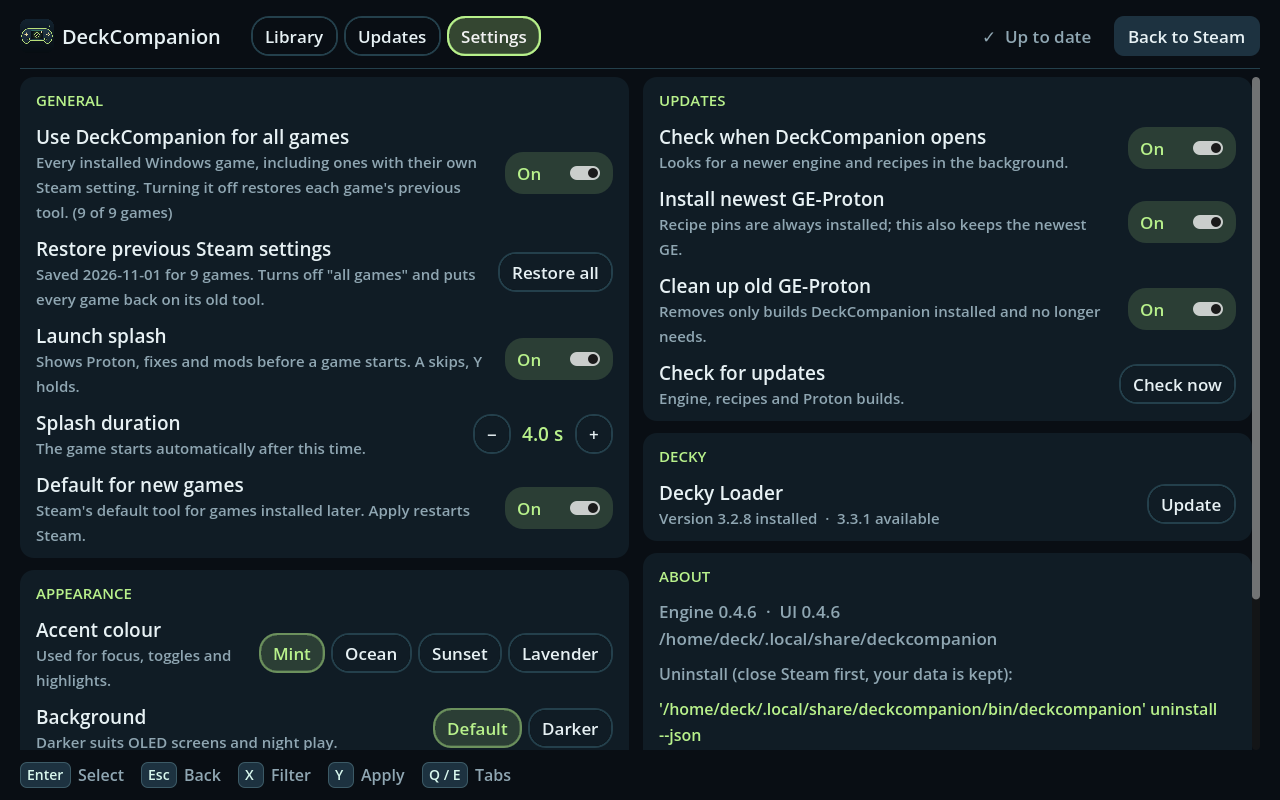
Settings that respect your setup

Use DeckCompanion for all games or only some, restore your previous Steam settings with one button, manage GE-Proton builds and Decky, and pick an accent colour.

  • Updates for recipes, mods and Proton arrive on their own, without reinstalling the app
Settings view

How it works

DeckCompanion is a Steam compatibility tool plus a management app. Steam hands each game to DeckCompanion, which prepares it and hands it to the right Proton.

Install once

Run the one-line installer in Desktop Mode. Steam restarts once and DeckCompanion appears in your library.

Pick your games

Use it for all games or only the ones you choose. Your previous settings are saved and can be restored any time.

Play

Each launch applies the recipe, community fixes and mods, then starts the game with the right Proton.

Recipes are open, and you can add yours

A recipe is a small TOML file per game: the Proton build, Wine fixes, mods and settings. Recipes ship separately from the app, so a fix reaches every Deck without a new release.

Opens a ready-made form on GitHub. Want to write the recipe yourself? See the recipe guide.

Add a game: store launchers and Windows games

Questions

How do I install it?

In Desktop Mode, download the installer from this page and double-click it in your Downloads folder (choose "Continue"/"Execute" if asked). It opens a terminal, installs DeckCompanion into your home folder and restarts Steam once. Prefer the terminal? Run curl -fsSL https://deckcompanion.renner.dev/install.sh | sh.

Does it change my system?

No. DeckCompanion installs into your home folder only, needs no root and no system packages, and keeps working after SteamOS updates.

Can I go back to how things were?

Yes. DeckCompanion stores a snapshot of every Steam compatibility setting it changes. "Restore all" in Settings puts every game back, and uninstalling does the same.

Which Proton does a game get?

In this order: a recipe's pinned build, your own choice, GE-Proton when a community fix exists, Valve's recommendation, then the newest installed build.

Do I need Decky?

No. Decky is optional. If you use it, DeckCompanion can add a Quick Access Menu panel for the current game.

Is it free?

Yes, DeckCompanion is open source under the MIT license.

Ready when you are

Download the installer in Desktop Mode and double-click it.

⬇  Download for Steam Deck